Friday, August 31, 2012

Interactive Report Quick Filter: show all columns

Normally, the quick-filter column selection would not allow you to pick a non-displayed column to filter on. You could however apply a filter through the Actions > Filter menu.
If applying a contains-filter through the filter menu is no problem, why would it be through the quick filter? So i tapped into the code that fetches the columns for the dropdown and replaced it with an own call to a function returning me ALL the columns. That's it. The original code to apply the filters is still there, and it obviously has no issue applying an IR filter for a non-displayed column.

An example can be found at: http://apex.oracle.com/pls/apex/f?p=17948:1


This IR has 2 columns not shown.
  • COMM is a HIDDEN column
  • DEPTNO is a non-displayed column


 Install and setup
To install the plugin, go to your application, select “Shared Components”, then go to “Plugins”. From there select “Import”, and browse to the sql file.
To use it on a page, create a dynamic action on your page for the “Page Load” event. As true action you can find the plugin under the “Initialize” group.

Technical

$("#apexir_SEARCHDROPROOT").removeAttr("onclick").click(
$("#apexir_SEARCHDROPROOT") is the looking glass icon. The generated onclick has to go and is replaced with an own handler.
In this handler an ajax call is made to an ajax function specified in the plugin. It doesn’t do too much:
apex_util.json_from_sql(q'!
  select 'All columns' D, '0' R, '0' C
    from dual
   union all
  select sys.htf.escape_sc(report_label) D, column_alias R, '1' C
    from apex_application_page_ir_col 
   where application_id = :APP_ID
     and page_id = :APP_PAGE_ID
     and interactive_report_id = !' ||l_ir_base_id
);
This bit of code will fetch all the columns defined for the IR, joined with the ‘All columns’ entry also found in the default dropdown. I got the markup from inspecting the ajax calls made by the IR when it retrieves the columns.
Ajax success handler:
function(data, status, obj){
                             p = obj;
                             if(gReport){
                                gReport.l_Action = "CONTROL";
                                gReport.current_control = "SEARCH_COLUMN";
                                gReport._Return(obj);
                             };
                          }
This is probably the most interesting. The returned object is stored in “p”, a global variable used by apex in its ajax processes.
gReport is the javascript variable created and instantiated by apex for the interactive report functionalities. L_Action and current_control are variables used in the ajax calls to determine what is asked for and what should happen. _Return is a function that would normally handle the IR ajax success callback.
So effectively I’m making the ir javascript think that it has just put out a call to retrieve the columns, and it should now handle the return (which is obj). The assignment of obj to p is still necessary because some checks are made against that variable aswell. From obj the responsetext is actually the most important.

Download: HERE

Thursday, August 30, 2012

Record navigation: refinement

First off: Dan McGhan, Thanks ;-) I wouldn’t have figured this one out by myself!

Second: my previous posts included the package APEX_IR. It has now been replaced by APEX_IR_PKG because APEX_IR is a new API in apex 4.2!

Finally, the code has been cracked :-) : it IS possible to retrieve the currently active interactive report through SQL! This is actually stored in a preference, residing in wwv_flow_preferences$, but also retrievable through apex_util.get_preference.
Code below is how the report id is retrieved:

IF p_report_id IS NULL THEN
   BEGIN
      SELECT interactive_report_id
        INTO v_report_id
        FROM apex_application_page_ir
       WHERE application_id = p_app_id
         AND page_id = p_page_id;

      apex_debug_message.log_message('interactive report_id: '||v_report_id);

      lv_pref := apex_util.get_preference(p_preference => 'FSP_IR_'||p_app_id||'_P'||p_page_id||'_W'||v_report_id, p_user => p_app_user);
      lv_pref := substr(lv_pref, 1, instr(lv_pref, '_')-1);
      apex_debug_message.log_message(': '||lv_pref);

      SELECT report_id
        INTO v_report_id
        FROM apex_application_page_ir_rpt
       WHERE application_id = p_app_id
         AND page_id = p_page_id
         AND base_report_id = lv_pref
         AND session_id = p_session_id;
   EXCEPTION
      WHEN no_data_found THEN
         apex_debug_message.log_message('no IR id could be found. Check input parameters. -> end');
         RETURN;
   END;
ELSE
   v_report_id := p_report_id;
END IF;


The returned preference value could look like ‘3522014783654717____X’. We’re only concerned with the first value as this is the id of the currently active report. Note that the preference name uses a report id: this is the id of the interactive report itself and not of a saved or session instanced version. The id we get from the preference is the id of the SAVED version of the report that is instanced for the session of the user. If you take a look at how the ids and saved reports work below you’ll understand.

There is a lot of writing I have done already on these report structures, and there is more in the comments in the package, but here is another illustration:

APEX_APPLICATION_PAGE_IR
Metadata for Interactive Reports
Interactive Report Id:
Region Id:

APEX_APPLICATION_PAGE_IR_RPT
Metadata for saved reports and session instances of those
For example (from my sample app on apex.oracle.com):

•    Reports with no session_id are saved reports.
•    All reports are based on the same interactive report
•    All reports have a unique id: REPORT_ID
•    Default (Primary) and alternative have an own application user. Named reports use the name of the creator evidently. Note that in my example app the report "Only Space Two" is a PRIVATE report! You'll see this of course when you log in with the test user.
•    My own instances of the reports are in the view aswell. You can identify them because they have a session_id, base_report_id and their report_type.
•    The base_report_id is the report_id of the report it is based on. "Report it is based on": the report_id of a saved version of the interactive report


Debugging from sql command line is still possible. There are two changes in the parameter list: p_app_user and p_report_id have been added. App_user is straightforward, but p_report_id is not. Leaving p_report_id blank from a command line to resolve the report_id is not possible. The preference fetch will only work in an apex session. You’ll have to retrieve the id yourself.
To do this, basically take the code block above, but query wwv_flow_preferences$  instead of using apex_util.
SELECT attribute_value
FROM apex_040100.wwv_flow_preferences$
WHERE user_id='YOUR_APEX_USERNAME' 
AND preference_name like 'FSP_IR_130_P11%'

Use preference_name like 'FSP_IR_130_P11_W5555555555' if you have retrieved the base interactive report id (that’d be from apex_application_page_ir). And of course, substitute the application and page id!

DECLARE
   v_next      VARCHAR2(50);
   v_prev      VARCHAR2(50);
   v_top       VARCHAR2(50);
   v_bot       VARCHAR2(50);
   v_cur_tot   VARCHAR2(50);
   v_debug     VARCHAR2(5000);
   v_binds     DBMS_SQL.VARCHAR2_TABLE;
   v_binds_val DBMS_SQL.VARCHAR2_TABLE;
BEGIN
    v_binds(1) := 'P52_COMPROD_ID';
    v_binds_val(1) := '106672'; 

    apex_ir_pkg.get_navigation_values
   (
      p_app_id      => 190,
      p_session_id  => 4133013019922250,
      p_column_id   => 'ID', --column id for IR!
      p_value       => 153876,
      p_page_id     => 52, 
      p_report_id => 55555555555555,
      p_app_user => ‘YOUR_APEX_USERNAME’, --APP_USER in apex session
      p_use_session_state => FALSE,      
      p_binds       => v_binds,
      p_binds_val   => v_binds_val,
      p_next        => v_next,
      p_prev        => v_prev,
      p_top         => v_top,
      p_bot         => v_bot,
      p_cur_tot     => v_cur_tot,
      p_debug       => v_debug 
   );   

   dbms_output.put_line('v_next: '||v_next);
   dbms_output.put_line('v_prev: '||v_prev);
   dbms_output.put_line('v_top: '||v_top);
   dbms_output.put_line('v_bot: '||v_bot);
   dbms_output.put_line('v_cur_tot: '||v_cur_tot);
   dbms_output.put_line('v_debug : '||v_debug );
END;
Download: HERE

Wednesday, May 9, 2012

Interactive Report filtering in Apex

Interactive Report filtering in Apex

I like interactive reports, and how they can put some serious query potential in a user’s hands with filters. But there are still some places where it falls a bit flat on its face. One such place is the popup you get when you click on the header of a column and search is enabled for that column.

For example, this report I have here is based on a table with only 27k records, and is meant as a replacement for an old Forms form. Users are used to working with IDs, and it is sometimes astonishing how they know these series of numbers by heart, or pick up new ones. So before, they went in the form, entered query mode, typed in the ID they had to look for (these IDs are everywhere!) and hit query: boom, here are your results. Find all addresses starting with 10? (which is a piece of the code referring to a country code) Enter ‘10%’.

What is the issue?

Now how do users like to work with the interactive reports? Well, probably the same way I do: least amount of clicking and follow the most intuitive path. Clickable headers? Yes please! So, I click this ID column header, and am presented the best things: sorting, hiding, breaking, and searching.
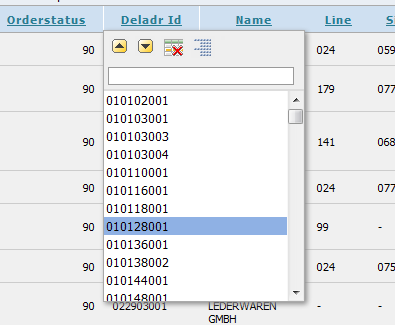
Great! Let’s start finding some things.


User: “What the …? Where is my id starting with 1054? Is this right? It IS right there isn’t it? Why is it not in the box? How do I have to search for it?”
Let’s scroll down when nothing is typed in; maybe it’ll be more downwards…


User: “Eh? I scrolled all the way to the bottom and my values aren’t there? HELP!”
Let’s take a look at another report.
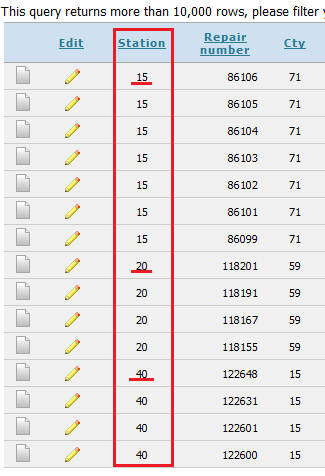


Notice the warning up top ‘more than 10k rows’.
Now I click on the “Station” header:
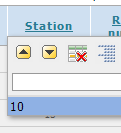

*BONK*(Sound of user falling from chair or hitting head on the desk)

Which is when I swoop in and take care of this by telling them: “Yes I know, sorry. You can’t actually use the box when there is a certain amount of unique records trespassed. You’ll need to go through Actions > Filter > select your column and operator, enter your search value and then click Apply (no, don’t hit Enter because Enter doesn’t work, I know, sorry).”
And they usually hang up when they see the Filter screen, or at the very least the operator dropdown. No matter they’ve worked their whole life with a LIKE operator in forms, when you don’t actually ever write SQL you wouldn’t know nor care either.


For the record: yes, the filter screen works great. But I consider it a workaround in this case. My users don’t want to go through that filter step each time they need to look up a record. I can make them of course; say it is within the limitations of this tool. But I feel like a tool each time I need to explain this.
So the actual problem here is the amount of retrieved values, and even distinct values when an amount has been surpassed! I checked out what happened through Firebug and this lead me to the interactive reports javascript file. When the header is clicked, an ajax call is done to retrieve the settings for the selected column: sorting, hiding, breaking, filtering. If filtering is enabled, values are fetched and returned, and kept in the DOM. But not ALL values; and the retrieved values are STATIC. STATIC!

Breaking out my toolbox, I set out to change this. Thankfully, I had a large piece of my work done already thanks to my form record navigation based on an IR query. Since the searchbox has to find the distinct values of the selected column within the IR query, I could reuse some of that code.


Now when a popup is shown, I automatically hide the values scroll list since it is useless. The search box I then turn into a jQuery Autocomplete widget, with an Ajax source. This ajax callback searches the IR query for the distinct values, and narrows down the values to the entered value. I wrapped this all up in a nice plugin too! Let me point out one thing though: I can’t stop the ajax call that apex does from getting its own list of values since it is too baked in for me to do anything about it.

Demo Application

Found here: http://apex.oracle.com/pls/apex/f?p=54687:32
Log in with apex_demo / demo. For example, click dname and select “Sales”. Then click ename: you will only see the names for dname=sales here. Also note the hiredate column: no range selection.
My settings: search behaviour: contains, filter behaviour: take existing filters into account, value fetching delay: 750, min length before fetching: 1

So how does it work now?

When the popup is opened, the scroll list will no longer be shown.
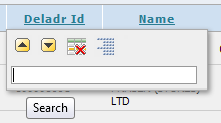

When the user types in some values, the autocomplete kicks in after a short delay, and a loading icon will be shown during the fetching of the values.
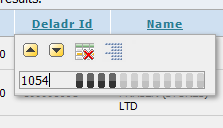


The values will then be shown. The first item in the dropdown will always be highlighted, so when a user presses enter, that value will be selected. Handy when they narrowed the list down to one match and want to select it without having to use the arrow keys or mouse.


As you can see, I now find my value I couldn’t find with the standard scroll list!


When I select the value, the filter is added, which is identical behavior to the standard list.

Adding the plugin to a page:

Implementation
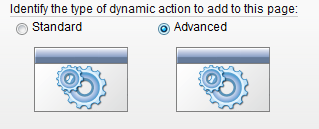
Identification

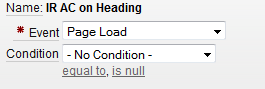
Name it something convenient, I name mine ‘IR AC on heading’

When

Select “Page Load” for event, so the plugin will run when your page has finished loading.
 True Action
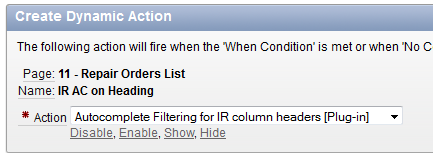
Select the plugin from the actions list, you can find it grouped under ‘Execute’
As for settings:

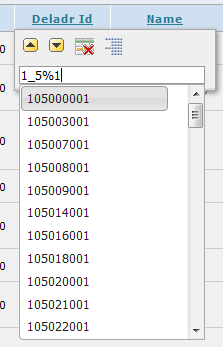
Search Behaviour allows you to alter the way results are fetched. The standard ‘contains’ is like the default behavior, and searches for any occurrence of the search value in the values of the column. Like allows users to filter the results with “%” and “_”, see the next screen.

Filtering behavior
With Filtering on:


This also means that for instance my Ordernumbers would only display the orders available for line V22, and I can only pick a value from those. With all values shown I could pick any number, which could result in a no-data-found of course.

With filtering enabled: (542 is my first value!)
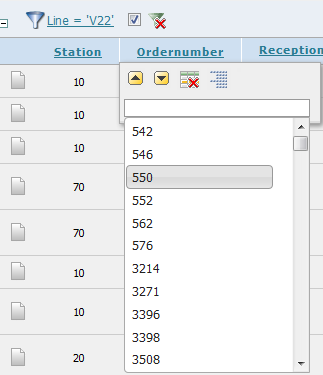

With filtering off: (3 is my first value!)
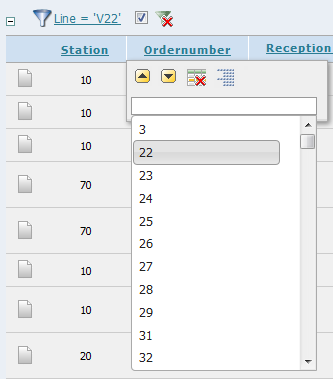

Value Fetching Delay: how long before the fetching kicks in after the first keystroke. This may be useful when the users usually type in a long series of characters, and you don’t want too many ajax calls. Useful when your data-set can be very large and lots of matches are possible.
Min length before fetch: how many characters have to be present before fetching will kick in.

Quick peek under the hood:

The javascript code which is run onload:
function create_autocomplete(ajaxIdent, fetchDelay, charAmount){
   // _Finished_Loading is called when the IR is done with a GET action
   // because the posts are synchronous in this report, and no events
   // or hooks are available, the best way to preserve functionality
   // yet extending it is to override the original function, yet 
   // keep the base code
   // apexafterrefresh cant be used since it is not triggered after
   // the widget ajax
   var or_Finished_Loading = gReport._Finished_Loading;
   gReport._Finished_Loading = function(){
       //overriden, but still have to call orinigal!
      or_Finished_Loading();
      //SORT_WIDGET is the widget containing all the header elements
      if(gReport.current_control=='SORT_WIDGET'){
         // hide the original dropdown box
         $("#apexir_rollover_content").hide();
         //let's do an initial search so the user has some initial 
         //options and doesn't have to start typing before being
         //prompted with some. Also great when there are not many
         //distinct options
         //The set minlength has to be disregarded for this though.
         var lSearchField = $("#apexir_search"), 
             lMinLength = lSearchField.autocomplete("option","minLength");
         //empty the search field, but dont trigger a search if length=0
         lSearchField.autocomplete("option","minLength", 5);
         $("#apexir_search").val('');
         lSearchField.autocomplete("option","minLength", 0);
         lSearchField.autocomplete("search",'');
         lSearchField.autocomplete("option","minLength", lMinLength);
         //the search field has to receive focus, otherwise the 
         //values list will not be hidden when the user clicks anywhere
         //but the popup. The popup would be hidden, but not the values.
         //Either case, it is good form to set focus here, a user would 
         //expect this behaviour.
         lSearchField.focus();
      };
      //alert('gReport finished loading');
   };

   //prevent the dropdown from showing up when user starts typing
   $("#apexir_search").removeAttr("onkeyup");

   //convert the item into an autocomplete item
   $("#apexir_search").autocomplete({
      source: function(request, response){         
         $.post('wwv_flow.show', 
                {"p_request"      : "PLUGIN="+ajaxIdent,
                 "p_flow_id"      : $v('pFlowId'),
                 "p_flow_step_id" : $v('pFlowStepId'),
                 "p_instance"     : $v('pInstance'),
                 "x01"            : gReport.current_col_id.substring(7),
                 "x02"            : request.term,
                 "x03"            : $v('apexir_REPORT_ID')}, 
                 function(data){
                    response($.parseJSON(data));
                }
               );
      },
      select: function(event, ui){
         //when making a selection, a filter has to be added to the IR
         //this is the same code executed when a user selects a value
         //from the original dropdown box
         //ltemp array: column id, operator, search value, -, -
         //-> array for htmldb_get action
         var lTemp = [gReport.current_col_id,'=',ui.item.value,'',''];
         gReport.get.AddArray(lTemp,1);
         gReport._Get('ACTION','COL_FILTER');
      },
      autoFocus: true, //automatically highlight first item
      delay: fetchDelay, // wait a bit before sending a request
      minLength: charAmount, // how many chars have to be present
      open: function(event, ui){
         //when the popup opens, the search is triggered and the ajax
         //will fire up. If a user however clicks somewhere so the 
         //popup is hidden again, the value list should not be 
         //displayed. Without this check, the list would be attached to
         //the document top left.
         if($("#apexir_search").is(":hidden")){
            $(this).autocomplete("close");
         };
      }
   });
}; 
Special note on gReport._Finished_Loading : this is in override of the function in interactive reports. I do this because there is no hook for an after-loading event in the case of the popup widget. The “apexafterrefresh” event is only fired in some cases, and the widget is not one of them. Finished_Loading however is, and it is safe to override it. I do keep the original function alive, as I actually just want to extend it.
 

Provided code

You’ll find 2 plugin files in the zip: 1 with and 1 without package calls. If you can, put the package in your database as it’ll save on the amount of code in the plugin. The no-package-plugin has comments stripped out in the plsql code too to save on space, but that is why the source files are there.
(The package APEX_IR contains code also found in my record navigation plugin. I plan to change the package there to so it is up to date.)

Limitations and remarks

Date columns: date columns get values retrieved by their to_char values. The original popup with the date range restriction filters are not there. As of yet I’m still unsure of how to best solve this. One way would be to simply allow the standard box to show here instead of an autocomplete. I’d love to provide 2 date picker items so a ‘between and’ filter could be put up, but i can’t find out how to provide the second date unfortunately - for now.
Other column types: if you’re using things like blob, html tags, apex_item, etc in your report, this may all fall flat on the face.
Amount fetched: I only fetch up to 500 values, which should be more than plenty as I don’t believe a user will willingly scroll through a thousand entries: that’s what the progressive searching is for.
Newlines and double quotes: these are removed since they break the JSON return parsing.
Saved reports, aka multiple versions of an ir: I haven’t really tried this out, but i believe everything should work without problem. The only thing you might need to change is the dynamic action: if the dropdown is not returning the correct values after you changed to another saved report, then try changing the DA from “page load” to “after refresh” on the IR region.

Edit: computations also break the functionality. No solution for this yet.

Debugging

Ah, this actually is a bit harder. I’d strongly suggest using Firefox + the Firebug plugin to trace the ajax call. Due to the most code being ajax calls, i can’t really put debug messages in. If the ajax call is not working (for example: the loading graphic just keeps going and going, it usually means an erroneous return), then first take a look at the response. It could be you find html for an error page there and you can glean the errorcode from there, since this’ll be the sqlcode from the plsql part of the callback.
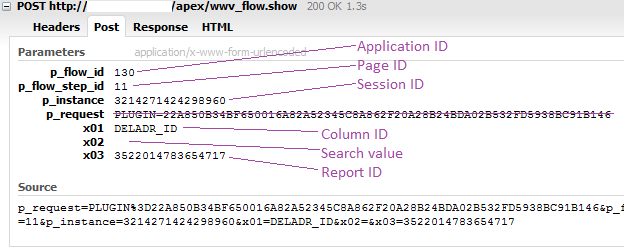
Please note that when you click a header 2 ajax callbacks will be fired:


The first callback is the default call issued by apex when a header is clicked. This retrieves the settings for the column, and whether the sort/break/hide buttons should be shown. If you’d look at the response, you’d also see the default unique values list, which is not something i can stop since this is retrieved due to the ‘search allowed’ settings.

The second callback is the callback to the plugin. x01 is the column being searched on, x02 is the search value, x03 is the report id. The response would contain the possible (or at least up to 500) values in json format.
From there, i only have one advice: use the code from the package you can find in the source code folder. Look at procedure “get_column_ac_values”, and uncomment the “dbms_output.put_line” lines. Now run the code from a sql-command window, providing the correct parameters.
This is the spec for “get_column_ac_values”:

   FUNCTION get_column_ac_values
   (
      p_app_id             IN  NUMBER,   -- application id (APP_ID)
      p_session_id         IN  NUMBER,   -- session id (APP_SESSION)
      p_column_id          IN  VARCHAR2, -- the column for which to get the next/prev vals
      p_value              IN  VARCHAR2, -- the current search value for p_column_id IF NULL THEN ALL
      p_page_id            IN  NUMBER,   -- Page number of the interactive report
      p_report_id          IN  NUMBER,   -- id of the selected IR, this can be null
      p_use_session_state  IN  BOOLEAN DEFAULT TRUE, -- true for using apex session state bind vars. If False p_binds+vals are to be filled.
      p_binds              IN  DBMS_SQL.VARCHAR2_TABLE, -- plsql table with bind variables
      p_binds_val          IN  DBMS_SQL.VARCHAR2_TABLE, -- plsql table with bind variables VALUES
      p_search_behaviour   IN  VARCHAR2 DEFAULT 'CONTAINS', -- LIKE, CONTAINS: how results are fetched
      p_filter_behaviour   IN  VARCHAR2 DEFAULT 'FILTER' -- FILTER, ALL: filtering of results
   )
   RETURN CLOB

Some of the parameters you can, again, retrieve from the plugin ajax call, but the most important parameter is the p_report_id.
Here is an example plsql call to the procedure. One issue though: if an error is thrown then this won’t work in an Apex SQL Command window. it will only show the sql error message, and no dbms_output at all. I suggest running this code in a sql sheet in for example sql developer (which you can get at oracle.com, it is a free tool).
Take note of parameter p_column_id: this is the name of the column searched for in the IR query. The actual name of the column in the query, so if you have aliased that column, then that alias will need to be provided, and not the base column name and neither the heading you can alter in the report attributes!
p_use_session_state: if you run this code from a sql command window, you won’t have session state for your items. If your query contains bind variables, you will need to provide the value for those! Set this parameter to FALSE, and provide the name of the bind vars in your query through parameter p_binds, and the values in p_binds_val. The relatation of binds and values in both these arrays is a 1-on-1 relation: the bind in position 1 in p_binds has the value stored in position 1 in p_binds_val.

DECLARE
  binds_table    DBMS_SQL.VARCHAR2_TABLE;
  values_table   DBMS_SQL.VARCHAR2_TABLE;
  v_retval       CLOB;
BEGIN
  -- If your query for example references a page item,
  -- then you will have to provide this to the query.
  -- If you have no bind vars in the query, you still
  -- need to provide the empty variables though.
  --
  -- binds_table(1) := 'P10_SOME_FIELD';
  -- values_table(1) := 'SOMEVALUE';
     
  v_retval :=
  apex_ir.get_column_ac_values
  (
     p_app_id              => 130,
     p_session_id          => 3214271424298960,
     p_column_id           => 'DELADR_ID',
     p_value               => '',
     p_page_id             => 11,
     p_report_id           => 3522014783654717,
     p_use_session_state     => FALSE,
     p_binds               => binds_table,
     p_binds_val           => p_binds_val,
     p_search_behaviour    => 'CONTAINS',
     p_filter_behaviour    => 'FILTER'
  );    
  dbms_output.put_line('return value: '||v_retval);
  -- the return should be a json-formatted string: [{}{}...{}]
END;

Demo Application

Found here: http://apex.oracle.com/pls/apex/f?p=54687:32
Log in with apex_demo / demo. For example, click dname and select “Sales”. Then click ename: you will only see the names for dname=sales here. Also note the hiredate column: no range selection.
My settings: search behaviour: contains, filter behaviour: take existing filters into account, value fetching delay: 750, min length before fetching: 1

Download

you can find a zip with everything you need inside, here. I might put it up on apex-plugins.com sometime.

Update: i'm working on an advanced filter for date columns, which will show 2 datepickers in the popup when a date column is selected. It's looking good so far :-)

Tuesday, March 20, 2012

Record Navigation - Plugged In

Update: improved, cleaned up, and bug fixes: follow-up

By encouragement of Dan McGhan, I turned my record navigation into a process plugin :-)

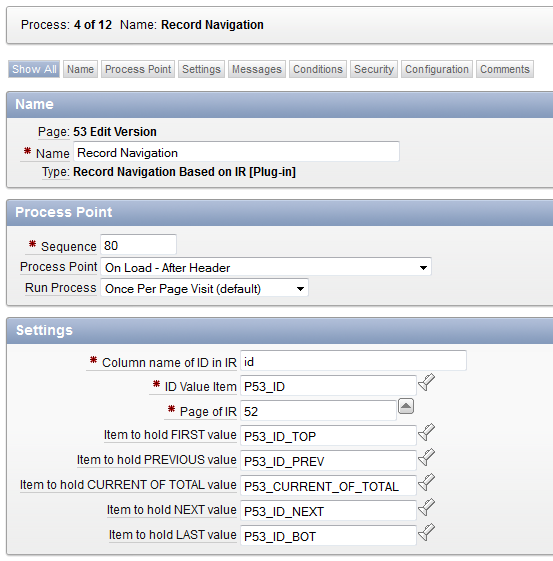
This is the plugin at work:

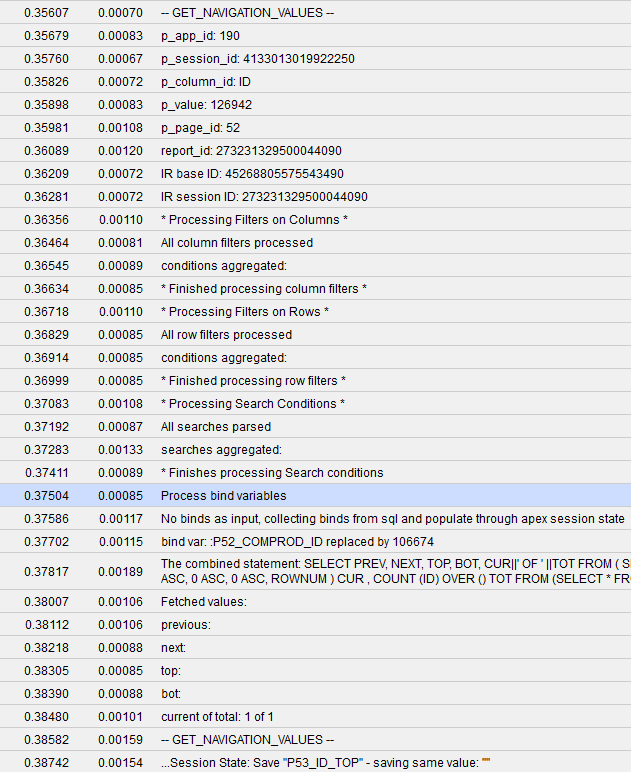
When you debug the page, you’ll see the following. Handy when it just doesn’t seem to want to work.


Running the code from a sql command is still possible, if you use the syntax below.
Key elements are p_use_session state, p_binds and p_binds_val. By setting p_use_session_state to TRUE, you indicate you want the bind variables in the query to be extracted and replaced with their session state values. This requires a valid apex session, which would render the procedure when called from for example the sql command window. I’m quite fond of being able to run my code through the sql command if something needs debugging, so I provided this option.
Setting p_use_sesstion_state to FALSE stops the automatic replacement. Instead, the provided bind variables in the p_binds array are processed, replacing them with the associated value in p_binds_val. Note that with “associated” i mean that for a value in p_binds, I look for the value in p_binds_val by position: p_binds(1) + p_binds_val(1).


DECLARE
   v_next      VARCHAR2(50);
   v_prev      VARCHAR2(50);
   v_top       VARCHAR2(50);
   v_bot       VARCHAR2(50);
   v_cur_tot   VARCHAR2(50);
   v_debug     VARCHAR2(5000);
   v_binds     DBMS_SQL.VARCHAR2_TABLE;
   v_binds_val DBMS_SQL.VARCHAR2_TABLE;
BEGIN
    v_binds(1) := 'P52_COMPROD_ID';
    v_binds_val(1) := '106672';
    apex_record_navigation.get_navigation_values
   (
      p_app_id      => 190,
      p_session_id  => 4133013019922250,
      p_column_id   => 'ID', --column id for IR!
      p_value       => 153876,
      p_page_id     => 52,
      p_use_session_state => FALSE,      
      p_binds       => v_binds,
      p_binds_val   => v_binds_val,
      p_next        => v_next,
      p_prev        => v_prev,
      p_top         => v_top,
      p_bot         => v_bot,
      p_cur_tot     => v_cur_tot,
      p_debug       => v_debug 
   );   
   dbms_output.put_line('v_next: '||v_next);
   dbms_output.put_line('v_prev: '||v_prev);
   dbms_output.put_line('v_top: '||v_top);
   dbms_output.put_line('v_bot: '||v_bot);
   dbms_output.put_line('v_cur_tot: '||v_cur_tot);
   dbms_output.put_line('v_debug : '||v_debug );
END;


All the code which was previously in my package is now wrapped in the plugin of course. However, you can still switch this around, since I still provide the package. Just put it on your database and the plugin will still work fine. All comments are removed from the plugin code too to save on space. Refer to the package code if you want detailed descriptions!

If you have put the package on the database, you can replace the original plugin code by calling apex_record_navigation.get_navigation_values, instead of calling get_navigation_values locally. An adjusted plugin is provided, use process_type_plugin_plugins_process_recordnavigation_pkg.sql. This has all the local procedures removed and calls the package on the db.

Note: there is currently a bug whereby this whole process will fail when using an IR with multiple saved versions of it. As soon as a user selects another saved version and goes to a detail, the chance is that the wrong base query is used. This is due to me not knowing which version is currently selected by the user on the database. The application express views do not contain a column which holds any such info, nor a timestamp of sort, even though there are last_updated and created_on column. Unfortunaly, these do not change when a report is selected :( The only way to solve this might be to create a dynamic action on the IR page which sets/holds the current selected IR ID in a page item, but i would consider this some sort of workaround.
So my advice for this: do not use an IR with multiple saved versions and this navigation process - for now. If you have any insight on this, feel free to contact me :)

I'll put this up on apex-plugin sometime, but for now the file is here: recordnavigation.zip

There's also this thread on OTN

Thursday, March 15, 2012

Record Navigation in Oracle Apex

Update: if you didn't notice, i already posted a follow-up! This post is still relevant, my follow-up shows the plugin i made out of all this.
Update 2: newer, cleaner, improved: follow-up 2

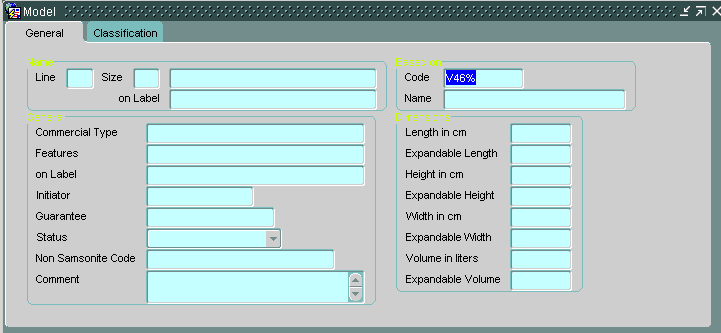
One of my projects involved migrating a bunch of old Oracle Forms over to Oracle Apex. For example, we have a form here, Model.
Users would go in this form and query for models, using code, name, or any other field. Each field has the ability to be queried on (ie, refining the results). For example, here all models would be queried which would have a code starting with ‘V46’.
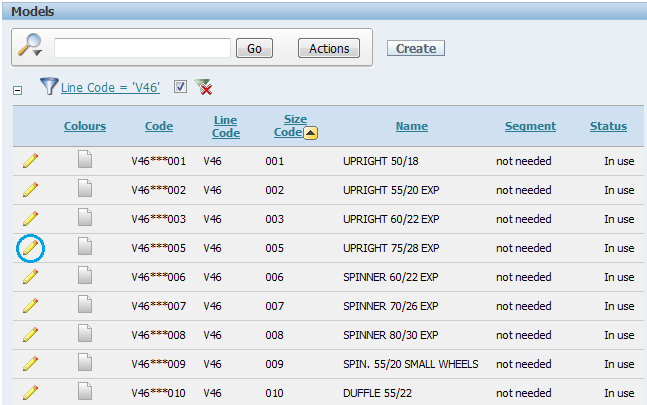
I translated this form into an Interactive Report with a Form page “underneath”. I added each column that was being queried in the old form, although I do no display each one. This provides users to query their records just as they used to do, only now by applying filters (which allow adding a filter on a non-displayed column). For example, I narrowed the results here to the same result-set I would’ve had in the old forms.
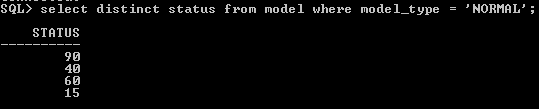
Take a note of columns “Status” and “Segments”. You can see how Status in the old form is a select list. When I looked in the source of the form, the values in the dropbox were a static list of elements.
Segments you can’t see on this screen, but it is on the Classification tab, and is an item with a List of Values on it – dynamical values.
These 2 columns were not alone: many others have an LOV on them.


This is the Query for my Interactive Report (IR):
select id model_id, null show_colours, line_code, size_code, code, name, descr_label, basemodel_id, commtyp_id, commercial_type,
commercial_type_label,
initiator_code, guarantee, status, non_samsonite_code, extra_comment,
cat_length, expandable_length, cat_height, expandable_height, cat_width, expandable_width, cat_volume, expandable_volume,
segments_id, prodtyp_code, maingroup_code, materltp_id, materlfr_id, linegrps_id, theme_id, gender_id, wheeltyp_id, seasonal_id
from model m
where m.model_type = 'NORMAL'
and m.line_id = NVL(:p40_line_id, m.line_id)

All the italics are columns based on LOVs. Now one way to have the IR display the correct associated value with those columns, would be to join tables, or write so-called ‘enhanced queries’:
SELECT id, null, …., (select description from genders where id = m.gender_id) gender, …
from model m

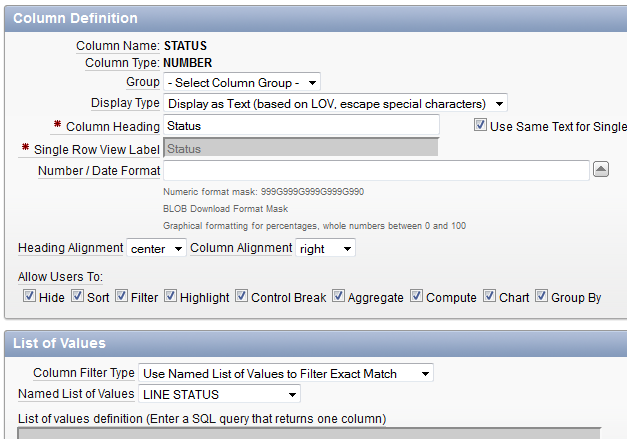
Not all those queries look as simple as that one though. So I opted for option 2, which wouldn’t clutter my SQL as much: set the item to display a value based off an LOV. For example, column Status: Display Type: Display as Text (based on LOV, escape special characters).


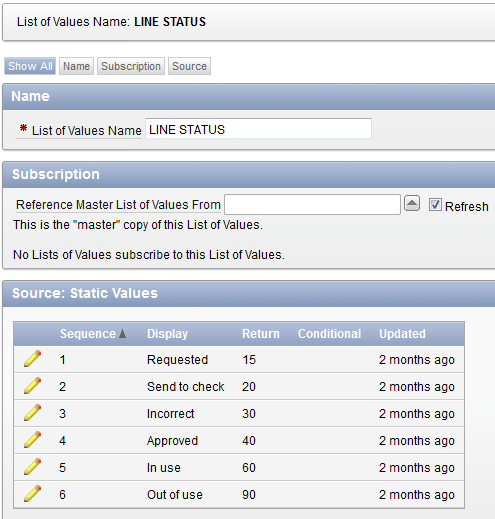
Status was based off static entries, so I created an LOV in the Shared Components of my application:


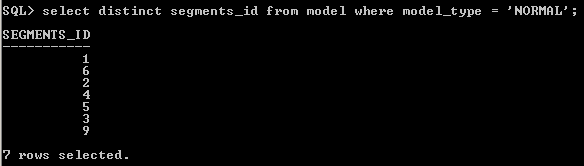
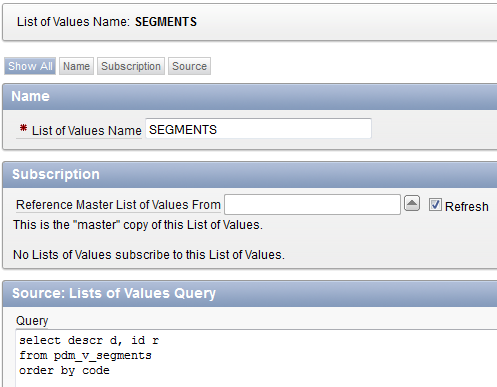
Segments were based off an LOV


I proceeded to treat the other columns the same, so now I have an IR with plenty of columns based on an LOV.
That was just the introduction however, on to my real beef.
When the users queried records in the old forms, they would move through the retrieved set only. So when they queried for ‘V46’ models, 45 records were retrieved. They would be on record 1, and could navigate back and forth (previous and next record) with the arrow keys, with respect to the “order by”-clause as defined in the form code.
How does this translate to Oracle Apex? Hard.
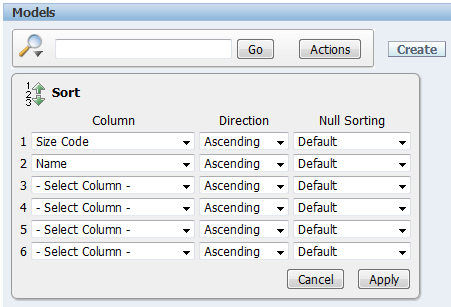
On my Models IR I have the default sort saved as such:


Fine and dandy, but then remember that users can create their own versions of reports, unless you take away that (powerfull) tool from your users. They can filter and sort, and then even save a private (or even public) version of that report.
Querying on for example the “Segments” isn’t hard either, just put a filter up like ‘segments = ‘not needed’’.
Now let’s go to the “underlying” form page of a record, let’s say record no 4 (encircled in blue on the IR report) with code ‘V46***005’. All  details are fetched etc, no problems. Now the user wants to be able to do a ‘previous’ and ‘next’ record. Why is this important to them? They would query for certain models, and then adjust fields for all those models, meaning they need those keys to be able to be productive.
So I thought, record navigation – easy! There is a provided process that creates everything I need: Processes -> Create -> Form Pagination.
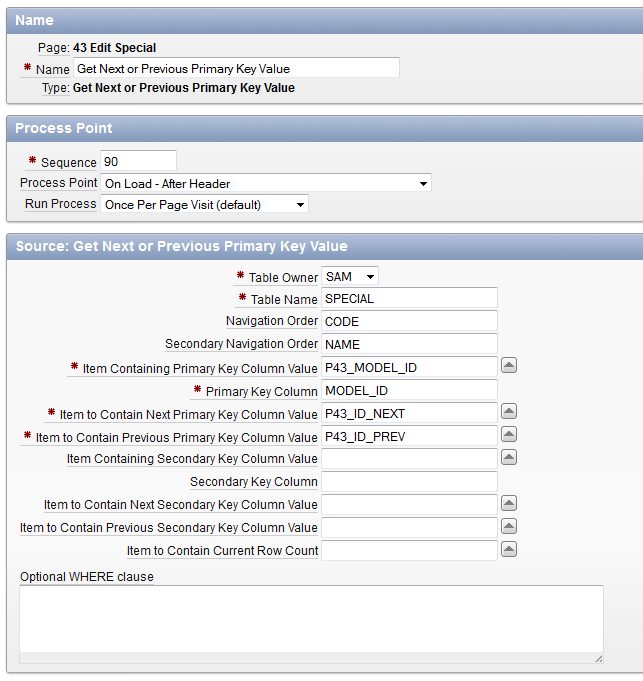
You’d end up with this process:

Spot my glaring issues yet?

  • Ordering is limited to 2 columns, and those are static unlike the 6 dynamic columns on the IR
  • The where clause is static aswell, unlike the filtering options of the IR. You’d need to use the same where-clause you define on the IR query too, meaning twice the maintenance.
So to keep the same behavior possible for the users of the form, they’d:
  • Filter and sort the IR
  • Go to the detail of the first record
  • Make their changes, and submit
  • Click Cancel or use the Breadcrumb to return to the IR
  • Go to the detail of the second record (“Oops, missclicked”, “Damn, already did this one”)
  • Etc
They didn’t think this acceptable, and I agree. I and the users admit that moving to a new platform brings about changes, and adaption will need to happen. However, losing productivity like that is a big negative.
Which left me one choice only: create my own process which retrieves the previous and next values for the current record.
Thankfully, someone already figured out a large part of the work: Simon Hunt (SHUNT). You can find his work here: http://simonhunt.blogspot.com/2009/12/next-and-prev-from-interactive-report-2.html
It really put me on the right track!
But I ran into some issues (again!). His code does not take into account LOV-columns. My fault for going that route probably, but I didn’t feel like rewriting many queries and changing lots of items now (as I have more than just this one screen which has to react the same).
I took Simon’s code and added onto it the ability to handle those LOV columns. I also allowed the bind variables you can provide to be null by adding some extra parameters (the original code tested for null values – I couldn’t have that, my binds could be null).
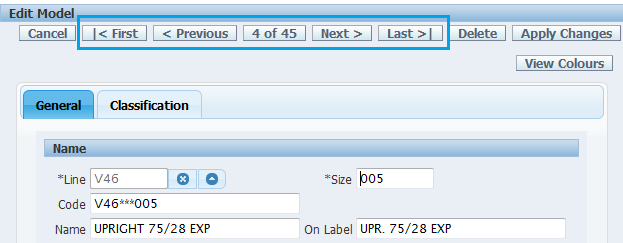
This is the end result: I now have 5 buttons, handling everything I need.
On my IR, I filtered for code V46, and 45 records are found.


In my form, you can see ‘4 of 45’. Correct.


What was needed:
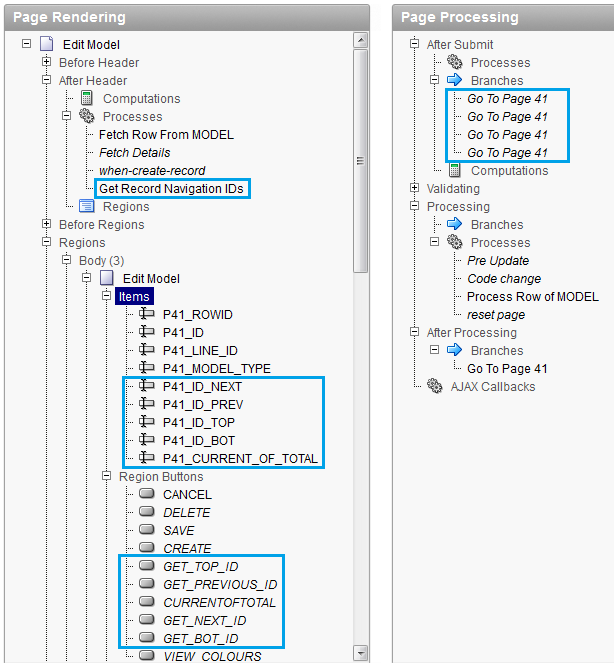
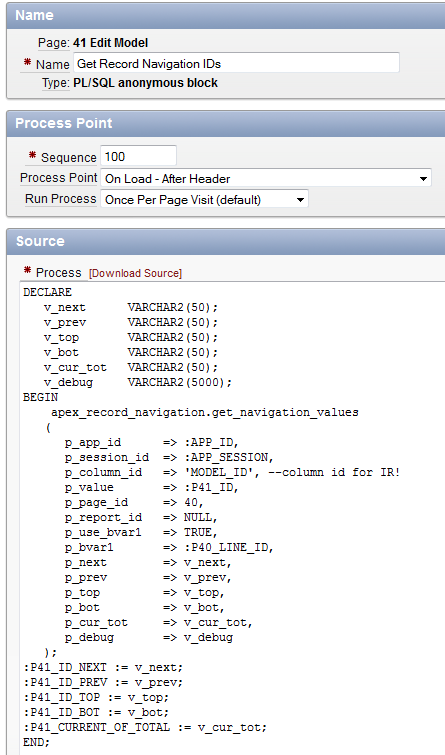
  • The process fetching the details: Get Record Navigation IDs
  • 5 items: ID_NEXT, PREV, TOP, BOT, Current_of_total
  • 5 buttons: First, Previous, Current of total (bogus button just to show the current), Next, Last
  • 4 branches to handle first, previous next and last

You could eliminate the processes by setting the buttons to redirect instead of submit. However, i tried to keep the style a bit in line with the standard process, which would generate 3 items, 2 buttons and 2 processes aswell. So in the end, you could have the same if you just ditch first and last.
This is just one way of handling it of course. I'd turn this in a plugin if i knew how to generate region buttons,page items branches and a process, but i don't :-)


This is what my page process looks like:


(Please note: i expect queries from the IR to be substitution variables free. So no #OWNER# in it. This is included in the comments of the code too. So take care when you generate an IR: take a look at the sql before trying this process)

And finally, the specs of the package I created. Everything is well documented too, so if you need to make changes to it you won’t be lost.
By far the largest problem was the mapping of the columns to the correct LOVs. Column and row filters, and column and row searches each needed their own handling to direct the queried column to their lov.
For example, querying on status would apply a filter like ‘status in (‘%use%’,’%obsolete%’)’ when status is actually (10, 20, 30, 40, 50, 60,…)!
Take a look in the code if you’re intrigued :-)
If you rather want to see it in action, go to my small demo app: here
create or replace PACKAGE apex_record_navigation
IS
   -- ++ M3.012 ++
   -- ++ Tom Petrus ++
   ------------------------------------------------------------------------------------------------
   /* Parses the sql and checks for the existence of a display and/or
      return value column.
      If the sql (which can be from a static or dynamic lov) does not
      contain a display value column, the return value one doubles as
      one.
      Valid values for:
      display value column: D, DISPLAY_VALUE
      return value column: R, RETURN_VALUE
      These values are what apex would require you to provide when
      creating an lov.
      The name for the display and return value columns are returned
      through the output variables.
   */
   PROCEDURE parse_sql_for_columns
   (
      p_sql          IN VARCHAR2,  -- the sql to be parsed for display/return columns
      o_display_col  OUT VARCHAR2, -- the column alias for the display column
      o_return_col   OUT VARCHAR2  -- the column alias for the return column
   );
   ------------------------------------------------------------------------------------------------
   /* Will parse the condition sql and search for columns which are based on
      an LOV. These columns then need to be remapped to the display value
      of those LOVs
   */
   FUNCTION get_ir_filter_lov_row
   (
      p_app_id          IN NUMBER,
      p_ir_bid          IN VARCHAR2, -- report BASE id
      p_condition_sql   IN VARCHAR2  -- condition sql
   )
   RETURN VARCHAR2;
   ------------------------------------------------------------------------------------------------
   /* It is possible to search on the displayed value of entries. For example, when there is a 'STATUS'
      with value 'In Use', then you can apply a filter on STATUS which only searches for 'Use' -> LIKE '%Use%'
      An exact match is POSSIBLE, but not necessarily!
      What has to happen:
      The filter condition which is applied on a column based on a LOV has to be applied to the
      DISPLAY_VALUEs of the LOV, NOT on the RETURN_VALUEs.
   */
   FUNCTION get_ir_filter_lov_col
   (
      p_app_id                IN NUMBER,
      p_named_lov             IN VARCHAR2,  -- the name of the referenced LOV
      p_condition_col_name    IN VARCHAR2,  -- the name of the (db)column being filtered
      p_condition_sql         IN VARCHAR2,  --
      p_condition_operator    IN VARCHAR2,
      p_condition_expression1 IN VARCHAR2,  -- expression is usually the value of the search
      p_condition_expression2 IN VARCHAR2   -- expression is usually the value of the search
   )
   RETURN VARCHAR2;
   ------------------------------------------------------------------------------------------------
   /* NEXT_PREV_VALUES:
      fetches the NEXT, PREVIOUS, TOP, BOTTOM, CURRENT and TOP values for the
      specified application+page+interactive report+column (usually an id column)
      When you specify filters and searches on an IR, you can't easily retrieve
      the next and previous values of a single record.
      For example, when you have a list of models and filter it down, and go to
      a detail page of a model (= a form page), you can't find the next and
      previous model within that filtered set. The standard form process in apex
      which provides record navigation does not offer navigation based off an IR
      either. It also has sorting limitations.
      
      Wish to use ROWID? Then make sure you have ROWID ALIASED in your query!
      Since the ir query will be made into a subquery, and ROWID is a pseudocolumn,
      it has to be aliased if it is to be selected out of this subquery.
      
      Substitution variables are NOT supported. If your query has been generated
      then there is a good chance it'll include #OWNER#. This procedure will 
      fail because i have provided no support for replacing those strings.
      Simply alter your region source and remove those strings.
      
      p_use_bvar1-4: specify TRUE when this bind variable has to be used
                     This is done so your bind var can have a NULL value
                     It is assumed that when you flag bindvar 3 as being
                     used, bind var 1 and 2 are also being used! There is
                     no conditional testing on which combinations of vars
                     are used!
   */
   PROCEDURE get_navigation_values
   (
      p_app_id       IN  NUMBER,   -- application id (APP_ID)
      p_session_id   IN  NUMBER,   -- session id (APP_SESSION)
      p_column_id    IN  VARCHAR2, -- the column for which to get the next/prev vals
      p_value        IN  VARCHAR2, -- The id value (for p_column_id) of the selected record: indicates current record
      p_page_id      IN  NUMBER,   -- Page number of the interactive report
      p_use_bvar1    IN  BOOLEAN  DEFAULT FALSE,
      p_bvar1        IN  VARCHAR2 DEFAULT NULL, -- Bind variable value1
      p_use_bvar2    IN  BOOLEAN  DEFAULT FALSE,
      p_bvar2        IN  VARCHAR2 DEFAULT NULL, -- Bind variable value2
      p_use_bvar3    IN  BOOLEAN  DEFAULT FALSE,
      p_bvar3        IN  VARCHAR2 DEFAULT NULL, -- Bind variable value3
      p_use_bvar4    IN  BOOLEAN  DEFAULT FALSE,
      p_bvar4        IN  VARCHAR2 DEFAULT NULL, -- Bind variable value4
      p_next         OUT VARCHAR2, -- next value
      p_prev         OUT VARCHAR2, -- previous value
      p_top          OUT VARCHAR2, -- top value: first record
      p_bot          OUT VARCHAR2, -- bottom value: last record
      p_cur_tot      OUT VARCHAR2, -- current of total: '4 of 132'
      p_debug        OUT VARCHAR2  -- Returns the final and adjusted executed query
   );
   ------------------------------------------------------------------------------------------------
END apex_record_navigation;


Download the code: prevnextlogic_V2.sql
Demo app: here